Settings and Operating Mode Selection
Automatic Mode
In this mode, the main screen shows the current temperature, the set (desired) temperature, as well as the status of the pump, heating, and filtration. Switching to automatic mode is done by pressing the UP arrow button. Pressing the SET button enters the automatic mode menu.
Manual Mode
In this mode, the main screen displays the current pool water temperature, as well as the status of the pump, heating, filtration, and possibly the timer. Switching to manual mode is done by pressing the DOWN arrow button. Pressing the SET button enters the manual mode menu.
Service Settings
In this mode, you can set or adjust several operational parameters such as date and time settings, heating loop duration, Wi-Fi configuration, etc. It is activated by pressing both arrow buttons simultaneously.
Automatic Mode
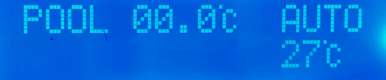
On the main screen of the display in idle mode, you can see the current light intensity
and the set light threshold for system activation.
The AUTO indicator shows that the controller is in automatic mode. The next line displays
the current temperature from the sensor. Note that this is not the pool water temperature
but the sensor reading and current time.
An exclamation mark next to the temperature indicates that the pool water temperature is not being measured.
To enter settings, press .
WARNING! If the pump is not running, an exclamation mark !
is displayed after the temperature, indicating that the shown temperature is not current.
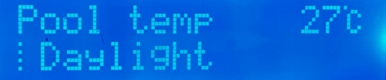
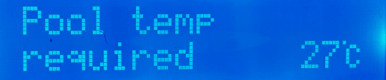
Setting the Desired Pool Temperature
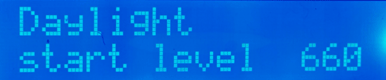
Setting Light Conditions for Activation
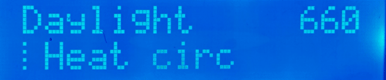
Set the light intensity level at which the system should start operation. From that moment, automatic operation will continue until dusk. Even if light intensity fluctuates during the day (clouds, partial eclipse, etc.), the system continuously evaluates the light level in relation to temperature gain and reacts accordingly. On the display, you can see both the current measured intensity and the target level, making setup simple and precise.
Setting Filtration Timer
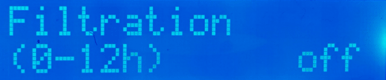
Here you can set how long the filtration should run. It starts at the set time and stops after the timer expires.
The system then goes into sleep mode and waits for the next day.
The start time of filtration is configured in the service menu.
WARNING! If heating needs to start but the filtration timer is still running,
the system will temporarily stop filtration before turning on heating to reduce pump load.

Exiting Menu and Returning to Main Screen
If the menu remains inactive, the system automatically returns to the main screen after several seconds.

Manual Mode
In this mode, no physical parameter is monitored — the system is entirely under your control.
You can manually operate the pump and valves.
Want to clean the pool with a vacuum?
Turn on the pump and, if necessary, the filtration
(only if using a filtration bypass) and you can start.
Standard Display Screen
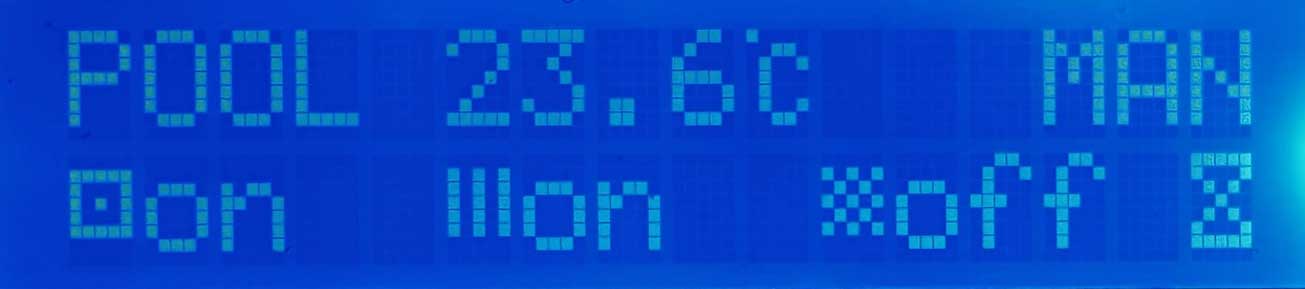
On the main screen, the first line shows the pool temperature and the label MAN
indicating manual mode. The second line displays the status of the pump, heater, and filtration.
An hourglass icon appears when the timer is active.
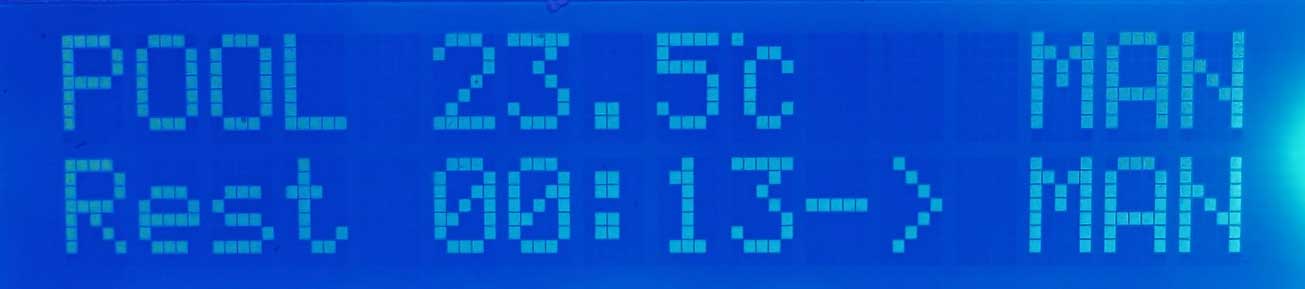
If the timer is running, you can check the remaining time by pressing
.
It will also show which mode (AUTO or MAN) the controller will switch to after the timer ends.
To enter the menu, press .
Navigate through the menu using
and
,
and confirm settings with .
WARNING! If the pump is off, an exclamation mark !
appears after the temperature, indicating that the displayed temperature is not current.
To refresh the temperature, start the pump.
Pump On / Off
This setting is saved in memory and restored after a power outage.


Heater On / Off
This setting is saved in memory and restored after a power outage.

Filtration On / Off
This setting is saved in memory and restored after a power outage.
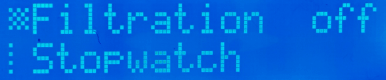
Manual Mode Duration
If a duration (in hours) is set, all manual mode operations will stop after that time.
The system will then either remain in manual mode or switch to automatic mode, depending on
the Stpw action setting.
You don't have to worry about forgetting something on.
The timer is saved in memory and restored after a power outage.
When active, it is indicated by an hourglass icon at the bottom right of the screen.
TIP: You can display the remaining time on the main screen by pressing
.

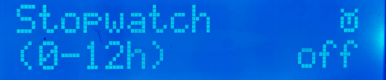
Action After Timer Ends Stpw action
If a duration is set (in hours), all manual mode operations will stop after that time, and the system will switch to the selected mode. This value is stored in memory and restored after a power outage.
Turn Off Everything with One Button

Exiting Menu and Returning to Main Screen
If the menu is left open, the system automatically returns to the main screen after several seconds.

Service Settings
In this menu, you can configure various system parameters.
To enter the service settings, hold the buttons simultaneously on the main screen of either operating mode.
Press and hold and then press
.
The display will show SERVICE MENU.
Date and Time Settings
TimeDat
Set the system date and time.
Heating Loop Settings
Heat circ 90Set the time (10–240 seconds) required for heated, thermally stabilized water to reach the pool (or sensor) from the solar panels. Start the pump, begin heating, and measure how long it takes for warm water to reach the pool. Enter that value. Correctly setting this time ensures accurate temperature readings for incoming water from the panels.
Circulation Loop Settings
Pool circ 60Set the circulation delay (10–240 seconds). This is the time it takes for water to travel from the pool to the sensor and for the temperature to stabilize.
Display Sleep Mode
Displ sleep offSets the display sleep time (0–60 minutes). When SUNREG performs any operation, the display automatically wakes up to show active data. You can also wake the display manually by pressing any button.
Filtration Start Time
Filtration 21:30Here you can set the time at which filtration should start, assuming a duration timer is set. The run time (in minutes) is defined in the quick menu of automatic mode. If the timer is set to off, the filtration will not run. This allows you to easily decide whether the filtration should operate that day.
Pool Temperature Recheck Interval
RCHK temp (Re Check Temp)If the pool temperature is greater than or equal to the set value, the system remains in standby mode, heating is off, and the pump is stopped. This setting defines the interval after which SUNREG rechecks the pool temperature. After the specified interval, it activates the pump, performs measurement for the set loop duration, and if heating is not required, returns to standby mode. Adjustable from 15 minutes to 2 hours.
Wi-Fi Communication Settings
WIFI setting
Enable or disable the Wi-Fi network.
When enabled, SUNREG starts broadcasting its own Wi-Fi network SUNREG-Wi.
Connect to it from your mobile phone — no password is required.
Open 192.168.4.1 in your web browser.
A page will open showing available Wi-Fi networks (SSID).
Select your own network, enter the password and email address,
and the SUNREG unit will connect to your Wi-Fi network.
Firmware upgrade
Firmware upgradeON/OFF/Manual. Available only when Wi-Fi is turned on and connected. It checks the software version, and if a newer one is available, it downloads and installs it.
Buzzer Frequency Setting
Buzzer frqSets the internal buzzer frequency between 500–2500 Hz (default: 2000 Hz).
SUNREG Software Version
About SUNREGDisplays the current software version.
Factory Settings
Used to restore the device to its factory configuration.
This erases all your personal and learned settings.
        Pool temperature: 27°C, light threshold: 200, filtration: off,
        pool loop: 60 sec, heating loop: 90 sec, display sleep: off, and more...
- Turn off the device.
- Press and hold the button .
- Turn the device back on.
- When * appears on the display, press the button .
- The message FACTORY RESET will appear.
- Release the buttons.
- The countdown will begin, indicated by <<<<<<.
- After completion, the display will show ***DONE*** and the system will restart.